

Alternatively, follow this tutorial to manually set up your mail account:
This guide takes you step-by-step through the process of setting up a new email account on your iPhone or iPad.
If the Mail account is already set up, but giving errors
Note: This guide defaults to IMAP and No SSL.
Replace example.com with your domain name
Add Mail Account
Select the settings icon on your home screen
- Select Passwords & Accounts
- Select Add Account
- Select Other from the menu

- Select Add Mail Account
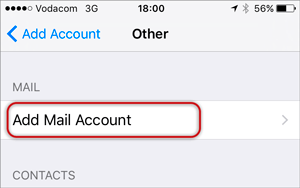
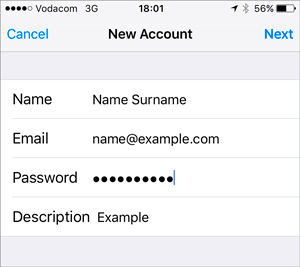
Enter your account information
Enter your Name, Email & Password > Next
- Forgotten passwords can be reset
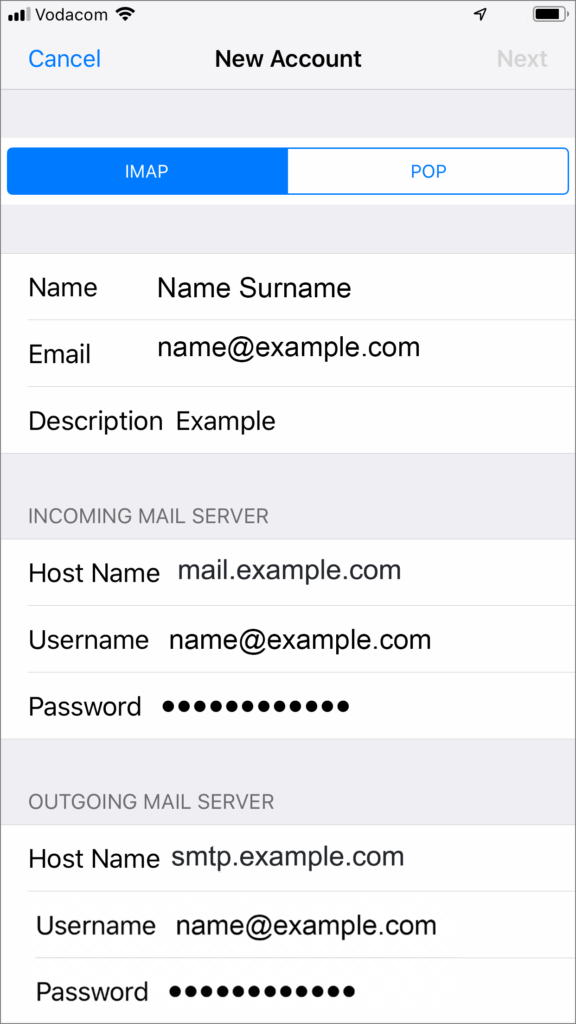
Configure Incoming and Outgoing Servers
-
- Select IMAP (default) or POP according to your needs (See POP vs IMAP)
- Scroll down to Incoming Mail Server and enter all the relevant details, then do the same for Outgoing Mail Server, as in the screen below and then select Next.
- Host Name:
- Incoming mail server: has before the domain name e.g. mail.example.com*
- Outgoing mail server: has before the domain name e.g. smtp.example.com*
- Ensure thatUser Name is the full email address
- User Name& Password are the same for both Incoming & Outgoing servers
Click Save
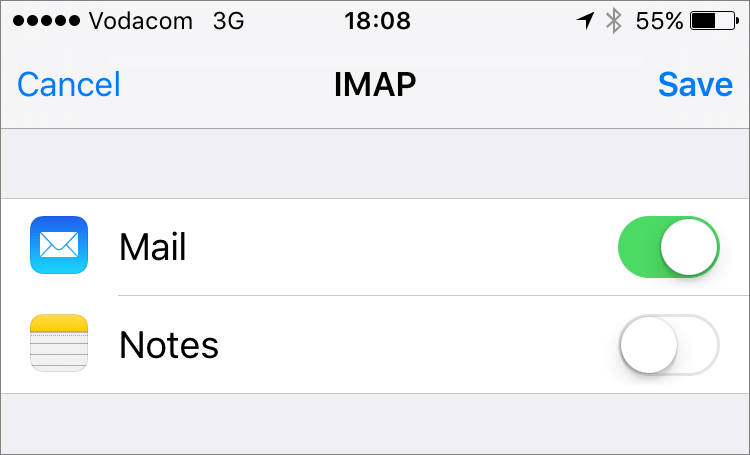
You have completed your account setup.
Congratulations! You have now successfully configured your email account on your iPhone.